SLIDE-1-TITLE-HERE

Replace these every slider sentences with your featured post descriptions.Go to Blogger edit html and find these sentences.Now replace these with your own descriptions.This theme is Bloggerized by Lasantha - Premiumbloggertemplates.com[...]

SLIDE-2-TITLE-HERE

Replace these every slider sentences with your featured post descriptions.Go to Blogger edit html and find these sentences.Now replace these with your own descriptions.This theme is Bloggerized by Lasantha - Premiumbloggertemplates.com[...]

SLIDE-3-TITLE-HERE

Replace these every slider sentences with your featured post descriptions.Go to Blogger edit html and find these sentences.Now replace these with your own descriptions.This theme is Bloggerized by Lasantha - Premiumbloggertemplates.com[...]

If you are going [...]

SLIDE-4-TITLE-HERE

Replace these every slider sentences with your featured post descriptions.Go to Blogger edit html and find these sentences.Now replace these with your own descriptions.This theme is Bloggerized by Lasantha - Premiumbloggertemplates.com[...]

SLIDE-5-TITLE-HERE

Replace these every slider sentences with your featured post descriptions.Go to Blogger edit html and find these sentences.Now replace these with your own descriptions.This theme is Bloggerized by Lasantha - Premiumbloggertemplates.com[...]

Showing posts with label Tips. Show all posts

Sunday, 27 November 2011

HijackThis

Trend Micro HijackThis is a free utility that generates an in depth report of registry and file settings from your computer. HijackThis makes no separation between safe and unsafe settings in its scan results giving you the ability to selectively remove items from your machine. In addition to this scan and remove capability HijackThis comes with several tools useful in manually removing malware from a computer.


HijackThis opens you a possibility to find and fix nasty entries on your computer easier.
Therefore it will scan special parts in the registry and on your harddisk and compare them with the default settings. If there is some abnormality detected on your computer HijackThis will save them into a logfile. In order to find out what entries are nasty and what are installed by the user, you need some background information.
A logfile is not so easy to analyze. Even for an advanced computer user. With the help of this automatic analyzer you are able to get some additional support. Just paste your complete logfile into the textbox in this page


Source

By TECHXPAN with No comments

Saturday, 26 November 2011

How To Set-up Automatic Vacation Response

You can set up an automatic reply to anyone who sends you email.

Here's how to let people know you can't respond right away:

  • Sign in to Gmail.
  • Click the gear icon in the upper-right and select Gmail settings along the top of any Gmail page.
  • From the General tab, select Vacation responder on in the Vacation responder: section.
  • Enter the subject and body of your message in the Subject: and Message: fields.
If you've enabled a personalized signature in your settings, Gmail will automatically append it to the bottom of your vacation response.
  • Check the box next to Only send a response to people in my Contacts if you don't want everyone who emails you to know that you're away from your mail.
  • Click Save Changes.


    By TECHXPAN with No comments

    Gmail Keyboard Shortcuts

    Keyboard shortcuts help you save time by allowing you to never take your hands off the keyboard to use the mouse. You'll need a Standard 101/102-Key or Natural PS/2 Keyboard to use the shortcuts.


    To turn these case-sensitive shortcuts on or off, click the gear icon at the top of any Gmail page and then Mail settings. Choose the option next to "Keyboard shortcuts" to turn them on. You can also enable shortcuts automatically by going to http://mail.google.com/mail/?kbd=1

    Shortcut Key Definition Action
    c Compose Allows you to compose
    a new message. <Shift> + c allows you to compose
    a message in a new window.
    / Search Puts your cursor in the search box.
    k Move to newer conversation Opens or moves your cursor
    to a more recent conversation. You can hit <Enter> to expand
    a conversation.
    j Move to older conversation Opens or moves your cursor
    to the next oldest conversation. You can hit <Enter> to expand
    a conversation.
    n Next message Moves your cursor to the
    next message. You can hit <Enter> to expand or collapse a message.
    (Only applicable in 'Conversation View.')
    p Previous message Moves your cursor to the
    previous message. You can hit <Enter> to expand or collapse
    a message. (Only applicable in 'Conversation View.')
    o or <Enter> Open Opens your conversation.
    Also expands or collapses a message if you are in 'Conversation View.'
    u Return to conversation list Refreshes your page and returns you to the inbox, or list of conversations.
    e Archive Archive your conversation from any view.
    m Mute Archives the conversation, and all future messages skip the Inbox unless sent or cc'd
    directly to you. Learn more.
    x Select conversation Automatically checks and
    selects a conversation so that you can archive, apply a label, or choose
    an action from the drop-down menu to apply to that conversation.
    s Star a message or conversation Adds or removes a star
    to a message or conversation. Stars allow you to give a message or conversation
    a special status.
    + Mark as important Helps Gmail learn what's important to you by marking misclassified messages. (Specific to Priority Inbox)
    - Mark as unimportant Helps Gmail learn what's not important to you by marking misclassified messages. (Specific to Priority Inbox)
    ! Report spam Marks a message as spam
    and removes it from your conversation list.
    r Reply Replies to the message sender.
    <Shift> + r
    allows you to reply to a message in a new window. (Only applicable in 'Conversation View.')
    a Reply all Replies to all message recipients.
    <Shift> +a
    allows you to reply
    to all message recipients in a new window. (Only applicable in 'Conversation View.')
    f Forward Forwards a message. <Shift>
    + f
    allows you to forward a message in a new
    window. (Only applicable in 'Conversation View.')
    <Esc> Escape from input field Removes the cursor from your current input field.
    <Ctrl> + sSave draft Saves the current text as a draft when composing a message. Hold the <Ctrl> key while pressing s and make sure your cursor is in one of the text fields -- either the composition pane,
    or any of the To, CC, BCC, or Subject fields -- when using this shortcut.
    # Delete Moves the conversation to Trash.
    l Label Opens the Labels menu to label a conversation.
    v Move to Moves the conversation from the inbox to a different label, Spam or Trash.
    <Shift> + i Mark as read Marks your message as 'read' and skip to the next message.
    <Shift> + u Mark as unread Marks your message as 'unread' so you can go back to it later.
    [ Archive and previous Removes the current view's label from your conversation and moves to the previous one.
    ] Archive and next Removes the current view's label from your conversation and moves to the next one.
    z Undo Undoes your previous action, if possible (works for actions with an 'undo' link).
    <Shift> + n Update current conversation Updates your current conversation when there are new messages.
    q Move cursor to chat search Moves your cursor directly to the chat search box.
    y Remove from Current View* Automatically removes the message or conversation from your current view.
    • From 'Inbox,' 'y' means Archive
    • From 'Starred,' 'y' means Unstar
    • From 'Trash,' 'y' means Move to inbox

    • From any label, 'y' means Remove the label
    * 'y' has no effect if you're in 'Spam,' 'Sent,' or 'All Mail.'
    . Show more actions Displays the 'More Actions' drop-down menu.
    <Ctrl> + <Down arrow> Opens options in Chat
    • <Ctrl> + <Down arrow> moves from edit field in your chat window to select the 'Video and more' menu
    • Next, press <Tab> to select the emoticon menu
    • Press <Enter> to open the selected menu
    ? Show keyboard shortcuts help Displays the keyboard shortcuts help menu within any page you're on. (Note: Typing ? will display the help menu even if you don't have keyboard shortcuts enabled)
    k Move up a contactMoves your cursor up in your contact list
    jMove down a contactMoves your cursor down in your contact list
    o or <Enter>

    OpenOpens the contact with the cursor next to it.
    uReturn to contact list viewRefreshes your page and returns you to the contact list.
    eRemove from Current GroupRemoves selected contacts from the group currently being displayed.
    x

    Select contactChecks and selects a contact so that you can change group membership or choose an action from the drop-down menu to apply to the contact.
    <Esc>Escape from input fieldRemoves the cursor from the current input
    #DeleteDeletes a contact permanently
    l

    Group membershipOpens the groups button to group contacts
    zUndoReverses your previous action, if possible (works for actions with an 'undo' link)
    .Show more actionsOpens the "More actions" drop-down menu.
    Combo-keys - Use the
    following combinations of keys to navigate through Gmail.

    Shortcut Key Definition Action
    <Tab> then <Enter> Send message After composing your message,
    use this combination to send it automatically. (Supported in Internet Explorer and Firefox, on Windows.)
    y then o Archive and next Archives your conversation and moves to the next one.
    g then a Go to 'All Mail' Takes you to 'All Mail,' the storage site for all mail you've ever sent or received (and have
    not deleted).
    g then s Go to 'Starred' Takes you to all conversations you have starred.
    g then c Go to 'Contacts' Takes you to your Contacts list.
    g then d Go to 'Drafts' Takes you to all drafts you have saved.
    g then l Go to 'Label' Takes you to the search box with the "label:" operator filled in for you.
    g then i Go to 'Inbox' Returns you to the inbox.
    g then t Go to 'Sent Mail' Takes you to all mail you've sent.
    * then a Select all Selects all mail.
    * then n Select none Deselects all mail.
    * then r Select read Selects all mail you've read.
    * then u Select unread Selects all unread mail.
    * then s Select starred Selects all starred mail.
    * then t Select unstarred Selects all unstarred mail.

    By TECHXPAN with No comments

    Friday, 25 November 2011

    Keep Your System Safe Using Malwarebytes


    Malwarebytes is a powerful tool that helps to detect and removes all traces of malwares from your system.

    Features:
    Lightning fast scan speeds.
    Full scans for all drives.
    Priority database updates.
    Ignore list for both scanner and protection module.
    Extra utilities to help remove malware manually.


    Download

    By TECHXPAN with No comments

    Information About Your Computer


    Speccy is an advance system information tool that helps to find out informations about:
    Operating System
    CPU
    RAM
    Motherboard
    Graphics
    Hard Drives
    Optical Drives
    Audio
    Peripherals
    Network
    It opens with a summary of all the hardware items in your system. Each section contains more information.


    Download

    By TECHXPAN with No comments

    Clear Your Temp Files Using CCleaner


    CCleaner is a tool that cleans out temporary files, log files, internet history and some other files too. It keeps the registry clean. It wont delete any important file. By cleaning these useless files it helps windows to run faster and free some space.

    Features:
    Cleans the following:

    Internet Explorer
     Temporary files, history, cookies, super cookies, Autocomplete form history, index.dat files.

    Firefox
     Temporary files, history, cookies, super cookies, download history, form history.

    Google Chrome
     Temporary files, history, cookies, super cookies, download history, form history.

    Opera
     Temporary files, history, cookies, super cookies, download history.

    Safari
     Temporary files, history, cookies, super cookies, form history.

    Other Supported Browsers
     K-Meleon, Rockmelt, Flock, Google Chrome Canary, Chromium, SeaMonkey, Chrome Plus, SRWare Iron, Pale Moon, Phoenix, Netscape Navigator, Avant and Maxthon.

    Windows
     Recycle Bin, Recent Documents, Temporary files, Log files, Clipboard, DNS Cache, Error Reporting, Memory Dumps, Jump Lists.

    Registry Cleaner
     Advanced features to remove unused and old entries, including File Extensions, ActiveX Controls, ClassIDs, ProgIDs, Uninstallers, Shared DLLs, Fonts, Help Files, Application Paths, Icons, Invalid Shortcuts and more...

    Third-party applications
     Removes temp files and recent file lists (MRUs) from many apps including Windows Media Player, eMule, Google Toolbar, Microsoft Office, Nero, Adobe Acrobat, WinRAR, WinAce, WinZip and many more...

    100% Spyware FREE
     This software does NOT contain any Spyware, Adware or Viruses.

    By TECHXPAN with No comments

    Thursday, 24 November 2011

    Free SMS Service

    Way2SMS helps users to send SMS to any mobile in the country. Sending messages from Way2SMS is Free , easier, and personal; above all messages are delivered in just few seconds.Every day, millions of SMSes are being sent via Way2SMS. The numbers are growing rapidly.


    • No catch! 100% Free SMS Service
    • Send Free SMS messages from your Computer or Mobile Phone
    • Schedule your SMS for Future dates
    • Send SMS to upto 20 People in One Go

    By TECHXPAN with No comments

    Nokia Codes

    IMEI - *#06#
    Phone Software Version - *#0000#
    Service Menu - *#92702689#
    Clock Stopping - *#746025625#

    By TECHXPAN with No comments

    Wednesday, 23 November 2011

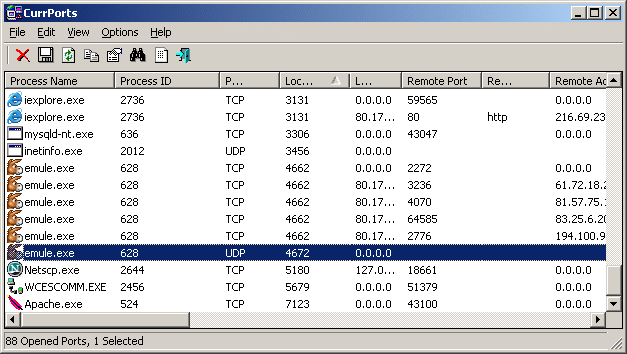
    Monitoring Opened TCP/IP Network Ports/Connections


    CurrPorts is network monitoring software that displays the list of all currently opened TCP/IP and UDP ports on your local computer. For each port in the list, information about the process that opened the port is also displayed, including the process name, full path of the process, version information of the process (product name, file description, and so on), the time that the process was created, and the user that created it. 
    In addition, CurrPorts allows you to close unwanted TCP connections, kill the process that opened the ports, and save the TCP/UDP ports information to HTML file , XML file, or to tab-delimited text file. 
    CurrPorts also automatically mark with pink color suspicious TCP/UDP ports owned by unidentified applications (Applications without version information and icons)

    By TECHXPAN with No comments

    To Show/Hide the Taskbar

    You can hide the taskbar to create more space.

    Hide:
    • Open Taskbar and Start Menu Properties by clicking the Start button , clickingControl Panel, clicking Appearance and Personalization, and then clickingTaskbar and Start Menu. 
    • Clear the Lock the taskbar check box. 
    • Select the Auto-hide the taskbar check box and click OK.
    The taskbar is hidden from view. You can see it again by pointing to the place where you last saw it.

    To turn off auto-hide:
    • Open Taskbar and Start Menu Properties by clicking the Start button , clickingControl Panel, clicking Appearance and Personalization, and then clickingTaskbar and Start Menu.
    • Clear the Auto-hide the taskbar check box.

      By TECHXPAN with No comments

      Internet Download Manager

      Internet Download Manager (IDM) is a tool to increase download speeds by up to 5 times, resume and schedule downloads. Comprehensive error recovery and resume capability will restart broken or interrupted downloads due to lost connections, network problems, computer shutdowns, or unexpected power outages. Simple graphic user interface makes IDM user friendly and easy to use.Internet Download Manager has a smart download logic accelerator that features intelligent dynamic file segmentation and safe multipart downloading technology to accelerate your downloads. Unlike other download managers and accelerators Internet Download Manager segments downloaded files dynamically during download process and reuses available connections without additional connect and login stages to achieve best acceleration performance.

      Features:
      • All popular browsers and applications are supported!
      • Easy downloading with one click.
      • YouTube Grabber.
      • Automatic Antivirus Checking.
      • Drag and Drop.
      For more features Read Here

      By TECHXPAN with No comments

      How To Use Torrents To Download Movies ,Mp3 And Other Files


      What is BitTorrent?
      BitTorrent (often abbreviated to ‘BT’) is a protocol (a set of rules and description of how to do things) allowing you to download files quickly by allowing people downloading the file to upload (distribute) parts of it at the same time. BitTorrent is often used for distribution of very large files, very popular files and files available for free, as it is a lot cheaper, faster and more efficient to distribute files using BitTorrent than a regular download.


      µTorrent is a BitTorrent client. A ‘client’ in this case is a computer program that follows the rules of a protocol. For example, HTTP (HyperText Transfer Protocol) is the protocol used to download web pages and other content – like this page – and your HTTP client (or browser) is the program you use to get those web pages. Some popular browsers include Microsoft Internet Explorer, Mozilla Firefox, Safari, and Opera. To an extent, they all work the same way because they follow the same set of rules.

      Just as there are multiple HTTP clients, there are multiple BitTorrent clients, and µTorrent is one such BT client.

      This video is just for those people who doesnt know the power of torrents and are always in need of finding ways for downloading latest movies ,songs,ebooks and stuffs..check it out..
      you need a ‘torrent file’ (often abbreviated as ‘.torrent’ or just ‘torrent’) to download content available using BitTorrent


      In this example..The site used for downloading torrent is


      BitTorrent client used is Utorrent 1.6 you can download it from here.

      Just click the green DOWNLOAD Button..


      Now you just need to add torrent file to your TorrentClient..
      Follow the video for detail steps..its really very very simple

        By TECHXPAN with No comments

        Google Account - Getting started with 2-step verification


        Why you should use 2-step verification

        2-step verification adds an extra layer of security to your Google Account by requiring you to have access to your phone – as well as your username and password – when you sign in. In addition to your username and password, you'll enter a code that Google will send you via text or voice message upon signing in.

        2-step verification drastically reduces the chances of having the personal information in your Google account stolen by someone else. Why? Because hackers would have to not only get your password and your username, they'd have to get a hold of your phone


        By TECHXPAN with No comments

        iGoogle as my default homepage

        To set your iGoogle page as your browser's homepage, click the link for the browser you're using below to get specific instructions. If your browser isn't listed, we suggest consulting its help resources.


        Google Chrome
        • Click the Tools menu .
        • Select Options.
        • Click the Basics tab.
        • In the 'Home page' section, select the option 'Open this page,' then enter http://www.google.com/ig in the text field.
        • Click the Close button.

          For more information about setting up your home page in Google Chrome, click here.

          • Click the Tools menu.
          • Select Internet Options.
          • Click the General tab.
          • In the 'Home page' section, type http://www.google.com/ig in the text box.
          • Click the OK button.
          • Click the Tools menu.
          • Select Options.
          • Click the General tab.
          • In the 'Startup' section, type http://www.google.com/ig in the text box.
          • Click the OK button.
          • Click the Safari menu.
          • Select Preferences.
          • Click General.
          • In the 'Home page' section, type http://www.google.com/ig in the text box.
          • Close the Preferences window.
          • Click the Tools menu.
          • Select Preferences.
          • Click the General tab.
          • In the 'Startup' drop-down menu, select Start with home page.
          • In the 'Home page' section, type http://www.google.com/ig in the text box.
          • Click the OK button.

          By TECHXPAN with No comments

            • Popular
            • Categories
            • Archives